Creator workflow
How to Add Word-by-Word Captions to Short Videos
Create readable word-by-word captions for Shorts, Reels, and TikTok. Correct the transcript, choose a style, check safe areas, and export with SupoClip.
By SupoClip · Updated · 6 min read
Word-by-word captions highlight speech as it happens. They help only when the words are accurate, easy to read, and placed where the viewer can see them. Build the style around the recording rather than choosing the busiest animation first.
1. Generate a clip and inspect its transcript
Import a supported video link or upload a video to SupoClip. Once a clip has been generated, open it in the editor and inspect the transcript alongside playback. Word-level timestamps connect the text to the spoken audio.
Start with accuracy. Check names, numbers, product terms, and words spoken over music or another voice. Listen to an uncertain phrase in its surrounding sentence before changing it. Captions should reflect what was actually said; they should not silently rewrite an ambiguous statement into a more confident claim.
2. Correct the words before styling them
Use the transcript controls to fix a misheard word and replay that portion of the clip. A spelling correction should not require moving an otherwise correct timestamp. If you rewrite a larger portion of the script, check the resulting synchronization rather than assuming the new text will fit the old cadence.
Remove distracting transcription artifacts, but retain qualifications that matter to meaning. For an illustrative example, ‘fifteen percent’ and ‘fifty percent’ can both look plausible in a transcript; the audio determines which belongs in the finished clip.
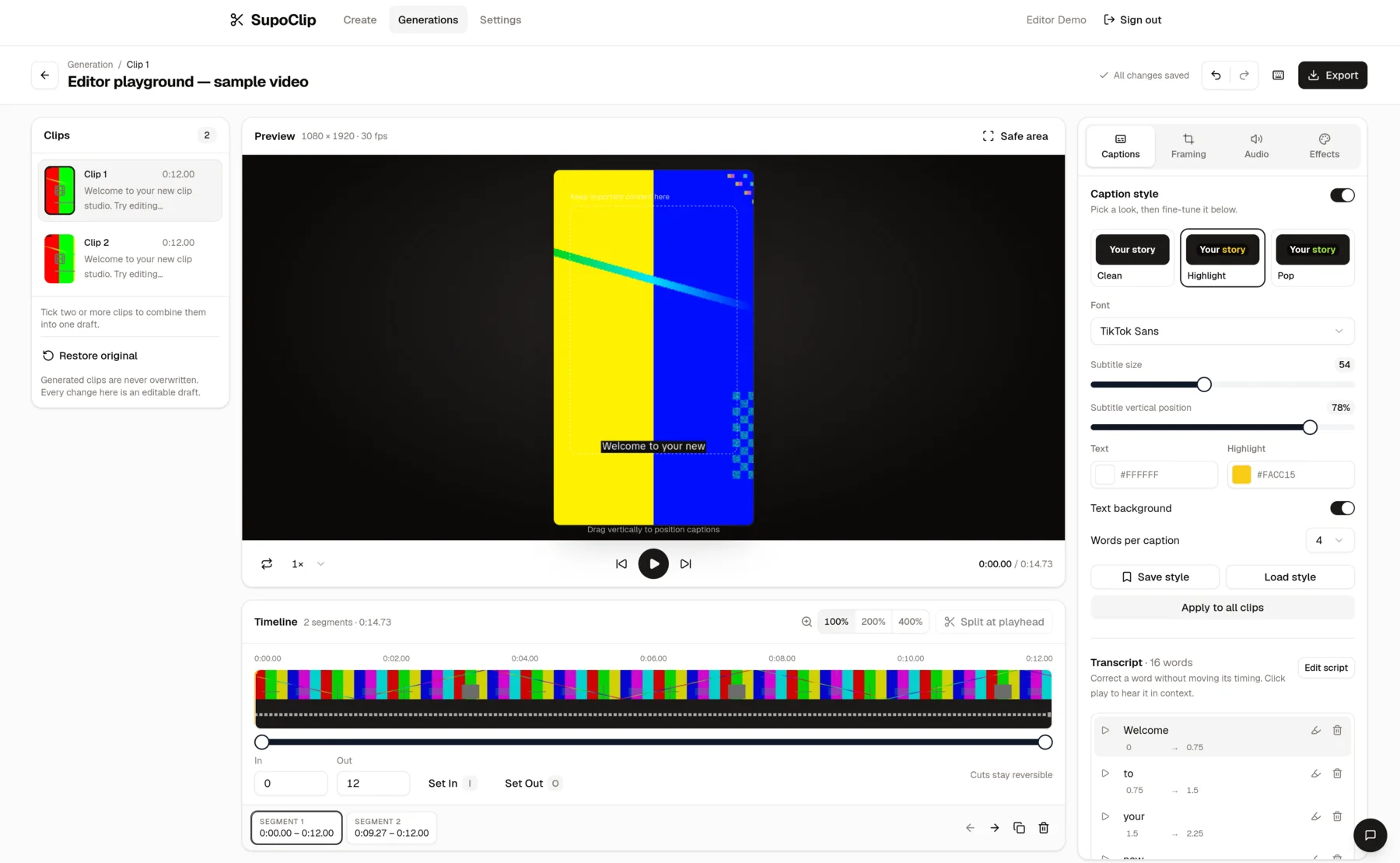
3. Choose a readable caption style
Start from a caption preset, then adjust the font, size, colors, position, and active-word highlight. Use a small, consistent palette. Highlighting every word with an aggressive color change can compete with a demonstration or a fast-moving scene.
Check the least convenient frame, not just a clean still. White text that works against a dark shirt can disappear when the camera cuts to a bright slide. A contrasting background or outline can help, but it should leave the subject visible. Save a style only after you have watched it across a representative clip.
- Use a font that remains legible at phone size.
- Break captions into short, readable groups rather than filling the width.
- Keep essential text clear of faces, charts, and product controls.
- Apply a saved style consistently, then review exceptions on each clip.
Made with SupoClip
Read the finished captions while the speaker talks
These complete clips were transcribed and rendered through SupoClip. Play them with sound to check synchronization, then mute the player and judge readability against the changing background.
What separates artists who improve
45s full clip · source 22:24–23:08
Follow the active-word highlight through a full sentence. Judge the text at the displayed phone-sized width rather than enlarging the player to make a small font seem readable.
Source: 7 Habits of Effective Artists — Andrew Price · Blender; speaker Andrew Price · CC BY 3.0
Watch the original momentSource, license, and edits
7 Habits of Effective Artists — Andrew Price · Blender; speaker Andrew Price · 2016-11-08
3,775,607 YouTube views when selected on 2026-10-26.
CC BY 3.0 · Source and license record
Excerpted with reviewed start and end points, reframed to 9:16, captioned with corrected spellings, given an editorial hook title, and encoded at 540×960. Pauses may be removed by the clipping pipeline. These editorial examples do not imply endorsement by the speakers or source publisher.
Download attribution and processing notesWhy an open film needs its community
33s full clip · source 00:22–00:55
Use a second speaker and recording to check the same caption style. Reusing a preset still calls for checking names, contrast, line breaks, and placement on each clip.
Source: Interview: Ton Roosendaal introducing Project Gooseberry · Blender Foundation; interview by Bart Veldhuizen; edited by Francesco Siddi · CC BY 3.0
Watch the original momentSource, license, and edits
Interview: Ton Roosendaal introducing Project Gooseberry · Blender Foundation; interview by Bart Veldhuizen; edited by Francesco Siddi · 2014-03-29
25,197 YouTube views when selected on 2026-10-26.
CC BY 3.0 · Source and license record
Excerpted with reviewed start and end points, reframed to 9:16, captioned with corrected spellings, given an editorial hook title, and encoded at 540×960. Pauses may be removed by the clipping pipeline. These editorial examples do not imply endorsement by the speakers or source publisher.
Download attribution and processing notesThese are complete example clips, encoded at 540×960 for this page. Source timestamps refer to the original recording; removed pauses can make the final clip shorter than that span.
4. Preview against platform controls
Short-form apps place interface elements around and over the video. Use the editor's safe-area preview as a guide, then inspect the exported clip in the actual destination app before publishing. There is no single caption position that works for every app, device, and piece of footage.
Pay particular attention to the bottom description area and the controls along the side. If the source already contains text, move or simplify the captions so two different messages do not overlap. The right position can change when you switch from a face crop to a wider screen recording.
| Problem | What to inspect | Adjustment |
|---|---|---|
| Words disappear | Bright and dark scene changes | Increase contrast or use a readable background |
| Captions feel late | The spoken word against its highlight | Review transcript timing and the final render |
| Text hides the action | Faces, hands, slides, and game UI | Move captions or reduce the amount on screen |
| Too much movement | Animation during fast speech | Choose a quieter style and shorter text groups |
5. Export and watch without sound
Choose the destination preset and render the clip. SupoClip's rendered captions are part of the video image, so they remain visible when you upload the file. Watch the exported version with sound to check synchronization, then without sound to check whether the topic and argument remain understandable.
Burned-in captions cannot be turned off by a viewer like a separate subtitle track. They also do not replace every accessibility feature a platform may offer. Where you provide additional platform captions, check that the two presentations do not create confusing duplicated text.
Finish and export a YouTube ShortUse captions in a podcast clipping workflow
Frequently asked questions
Can I correct automatically generated captions?
Yes. Review the transcript in the clip editor, correct misheard words, and check playback before exporting. Recheck timing after larger script changes.
Do I need a different style for every platform?
You can reuse a visual style, but inspect placement and readability in each destination. Platform controls and the footage itself can require different caption positions.
Will viewers be able to turn these captions off?
Captions rendered into the video image stay visible. They are different from a separate subtitle track that a platform can let viewers enable or disable.
Make your next clip easier to follow
Generate a clip, correct the transcript, and create a caption style that stays readable on a phone.
Keep reading
Podcast clips
Turn a video podcast into Shorts and Reels
Choose complete ideas, correct captions, and follow real clips back to the source.
ReadStream clips
Turn Twitch VODs into TikTok clips and Shorts
Review spoken highlights, preserve gameplay context, and export vertical clips.
ReadWebinar repurposing
Repurpose a webinar into social media clips
Turn audience questions and useful answers into clips with readable slides and captions.
Read